
Introduction
Log In and Out of N-Tracking
In this topic, you learn how to log in and out as an N-Tracking Administrator.
We estimate that this will take 2 minutes to complete.
Detailed explanation
Welcome to N-Tracking
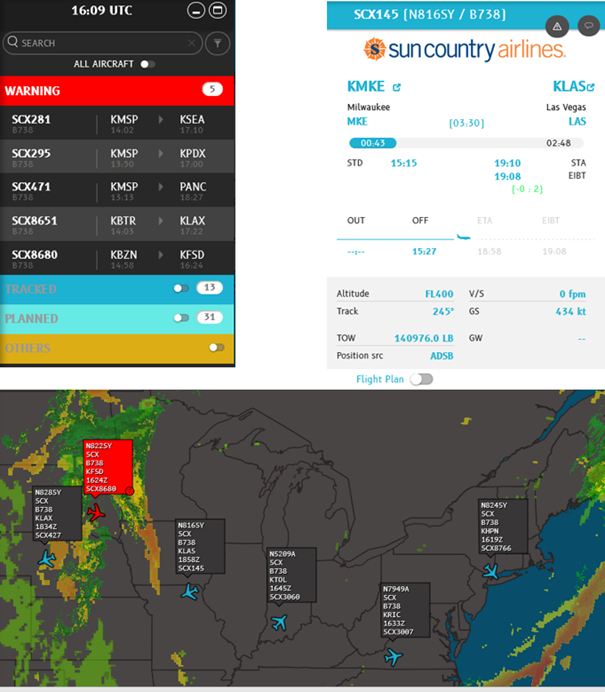
N-Tracking proactively manages Dispatch operations with dedicated views for both Administrators and individual users. It provides:
- real-time aircraft tracking
- frequent flight position updates
- event alerting
- worldwide weather coverage
- compliance with ICAO Recommendation 2018.
Your First Time Logging In
N-Tracking is accessed on the Internet using supported browsers such as Google Chrome, Microsoft Edge, Mozilla Firefox, Safari.
Use this URL:
https://prod.ntracking.vmc.navblue.cloud/
During your N-Tracking implementation, NAVBLUE sets up user accounts, including your Administrator account. As other airline employees join the team to use N-Tracking, you will add those user records as needed. New users receive an automated email with their username and password when the account has been created.
Users will contact you if the password reset function fails. Users must have their email address recorded in N-Tracking for the password reset process to work.
HINT
Add the N-Tracking URL to your list of bookmarks in whichever browser you are using.
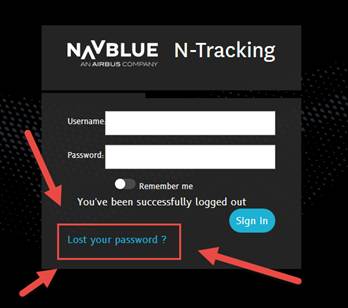
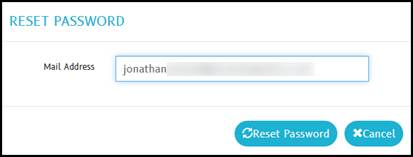
After a password reset request is made, the new password is emailed to the user. The message looks similar to the one below. Within the message body is the user's initial password.
Note: An Administrator must also reset their password by following these steps.
For more details, review the Resetting Your Password topic.
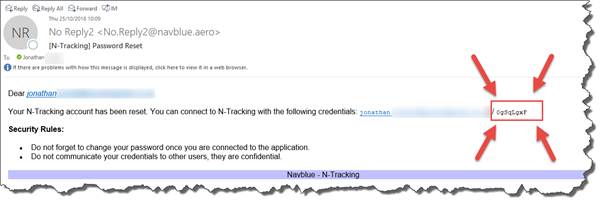
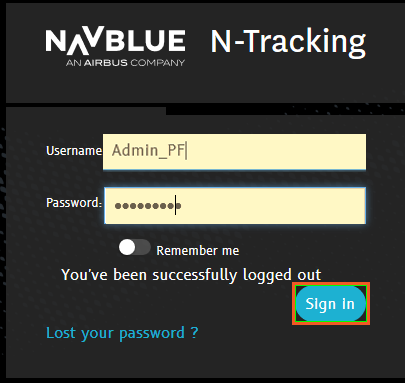
For the purposes of this demonstration, we have pre-filled the Username and Password fields for you.
 Click the Sign In button.
HINT
If you are the only person to work on the device you are using, consider activating the  option. Do not do this on a shared device.
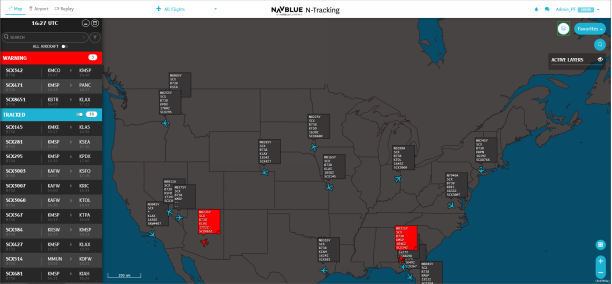
On logging in for the first time, you might choose to set the aircraft labels to automatically rearrange themselves. Do this in the Layers menu on the General tab.
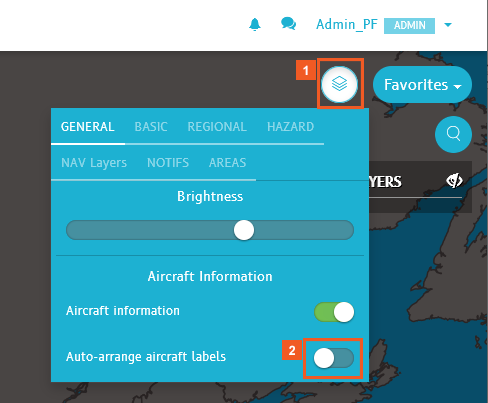
 Click the Layers menu button.
 Click the Auto-arrange aircraft labels slider.
If you have not already been provided with an overview of the N-Tracking user interface by the Product team, take some time to review the topic User Orientation in the Dispatcher-oriented training content.
You can also find more detailed information about all the tabs in the Layers menu and the other N-Tracking features in the Dispatcher-oriented training content.
Now, for practice: Log out.
Look for this option in the Administration menu.
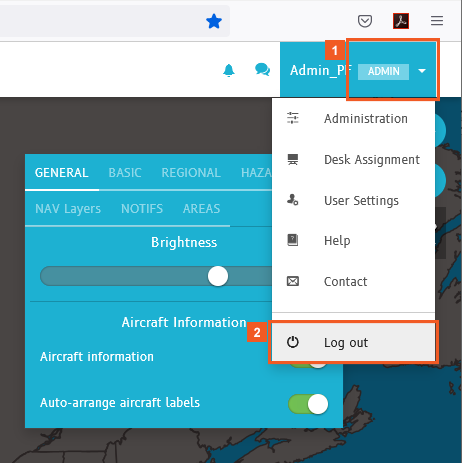
 Click the ADMIN dropdown button.
 Click the Log out menu button.
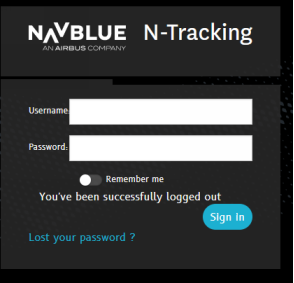
When you log out, the N-Tracking Login pane re-appears.
As an N-Tracking Administrator, your next step is to become familiar with the ube to get familiar with the user interface (UI) by reviewing the related topic in the Dispatcher-oriented training content.
Alternatively, continue learning how to perform administrator duties such as:
- assigning the colors to be used for the aircraft icons on the map and for the different section banners (Tracked, Planned, and Others) of the Flight List
- choosing the data that displays in aircraft labels on the map
- defining the thresholds at which various caution and warning alerts display on the map
- other administrative tasks.
These topics and more are covered in the following training content.
SUCCESS
Congratulations! You have successfully logged in and out of N-Tracking.